

Google Play Publishing Checklist for Unity Game Developers (2026)
Google Play Publishing Checklist for Unity Game Developers (2026) is a practical guide to help developers prepare, test, and publish their Unity games on Google Play. Learn about app setup, build requirements, store listings, privacy and policy compliance, monetization, testing, and common publishing mistakes before launching your Android game.
Google Play Publishing Checklist for Unity Game Developers (2026)
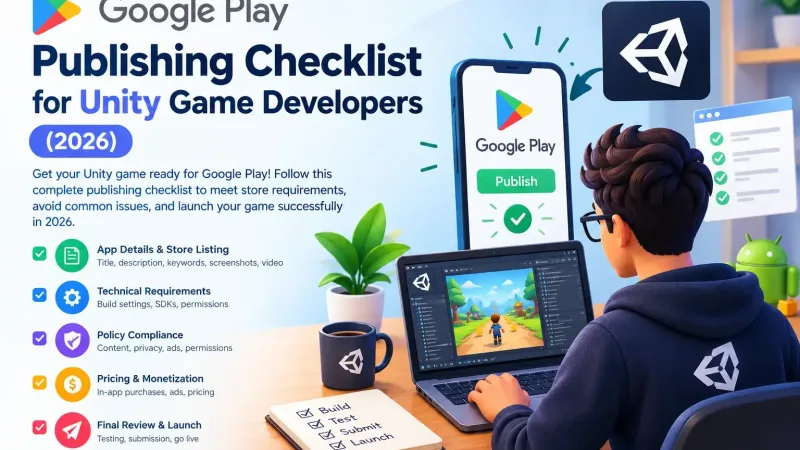
Google Play Publishing Checklist for Unity Game Developers (2026)
Getting your Unity game published on Google Play Store is not just a matter of hitting the “Build” button. One wrong step can see your application rejected from the platform or suspended. So here are some of the basics of getting your Unity application published on Google Play.
1. Unity Build Settings
Change the platform in Build Settings to Android.
Select the latest target API level available (the Google Play store requires either the current or the previous Android API level).
Choose the minimum API level based on the range of devices you wish to target.
Check "IL2CPP" as your scripting backend (64-bit architecture is mandatory for Google Play store).
Choose Target Architectures as both ARM64 and ARMv7 to cover all devices.
Make sure that you select the right Scripting Backend and Api Compatibility Level to prevent runtime crashes.
2. App Signing
Create a Key Store file and keep it safe because if you lose it, you will not be able to update the application anymore.
Switch on Google Play App Signing to make Google secure your signing key.
Convert to the Android App Bundle (.aab) rather than APK.
3. Setting Up the Play Console
Create an account on Google Play Developer ($25 one-off payment).
Set up app information: app title, short and long descriptions, app category, and tags.
Integrate relevant keywords in your app title and description for ASO purposes, which have a direct impact on Play Store rankings.
Upload graphics including the app icon, feature graphic, phone screenshots, and tablet screenshots (if applicable).
4. Game Store Listing Optimization (ASO)
Identify relevant keywords based on the genre of your game (such as "puzzle game," "idle RPG," or "racing game").
Craft an engaging title of 80 characters that incorporates your main keyword.
Utilize the first three lines of your description effectively, as these will appear to users before clicking "read more."
Include a quality promo video (optional but recommended for higher conversion).
5. Privacy and Policies Compliance
Establish a Privacy Policy URL – a requirement for all apps.
Fill out the Data Safety form on Play Console and disclose the data collected by your game properly.
Make sure that if your app is targeting children, it complies with Google Play Families policy.
Include ad SDKs and analytics services like AdMob, Unity Ads, Firebase into the Data Safety declaration.
Indicate Target Audience and Content fields properly.
6. Content Ratings
Fill out the IARC content rating questionnaire in the Play Console.
Make sure you've disclosed the correct content (violent scenes, gambling content, user-generated content) in your game.
7. Pre-Release Testing
Create a Pre-launch report in Google Play Console to identify crashes on actual devices.
Perform testing on different screen sizes and Android versions.
Make use of Internal Testing or Closed Testing tracks before releasing.
Perform tests for poor-quality devices, as majority of Play Store users do not use flagship devices.
8. Setup for Monetization
Implement in-app purchases (Google Play Billing Library), if applicable.
Ensure that your ad placements conform to Google Play Ad policy (no inadvertent clicks, no ads during loading screen without prior notice).
Setup of Google Play Console for revenue reports.
9. Final Pre-Launch Checklist
- AAB file created and signed properly
- Target API level satisfies current Google Play policy requirement
- Privacy Policy published and linked
- Data Safety document complete
- Content rating done
- Store listing optimized with appropriate keywords
- Screenshots and feature graphic uploaded
- Tested on real devices through Pre-launch report
- In-app purchases and ads tested
- App analyzed according to Google Play's Developer Program Policies
10. Post-Launch Must-haves
- Pay attention to crash reports and ANR (App Not Responding).
- Check ASO metrics and change keywords/screen shots accordingly.
- Take care of reviews from users to add credibility to your app.
- Plan to release updates because Google Play prefers apps that are updated regularly in search results.
Conclusion
Launching a Unity application on the Google Play Store is more than just simply building an app — it includes both the proper configuration, as well as adherence to the requirements and optimizations of the store itself. Following this list decreases the chances of being rejected.
Frequently Asked Questions
What file type is required by Google Play for Unity games?
The Google Play Store requires that you upload the Android App Bundle file (a file extension of .aab) instead of an APK file.
Do I need a Privacy Policy to release a Unity game on Google Play?
Yes, the Privacy Policy URL field is required for all apps.
Why is my Unity game rejected from Google Play?
Some common rejection reasons are an incorrect target API level, no Data Safety, content or ad policy violation, and crashes in the Pre-launch report.